
3b. Event Board: Scheduling, Cancel/Restore, Holidays & Export
Deep-dive operational workflows on
Event Board:Smart schedulingdrafts, 8-reason Cancel & 2-step Restore, bulkHolidays, and multi-sheet ExcelExport. For the 11-column board andNext Material, see Chapter 3 — Daily Dispatch.
1. Schedule & Smart scheduling on Event Board
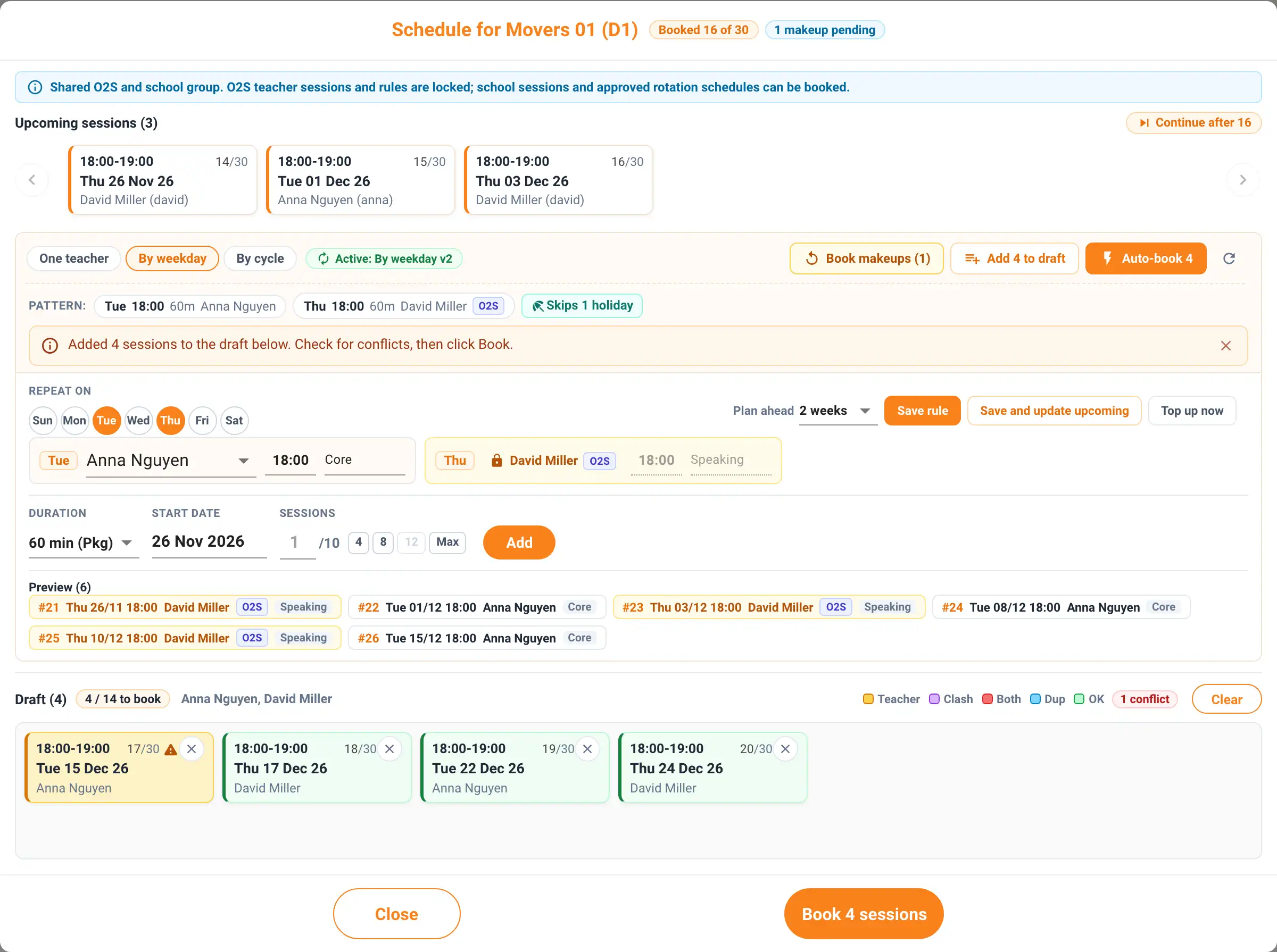
Filter Event Board to 1 class (Group) and click Schedule (or click Col 5 Ordinal):
- Click
Continue after kunderUpcoming sessionsto pre-fill the next date and time slot cleanly. - Pick
One teacher(4 · 8 · 12 · Max),By weekday(per-weekday teacher/time/track such asTue+ locked🔒 Thufor[O2S]), orBy cycle(rotation steps), then clickAdd N to draftorAdd. - Inspect
Draft (N)conflict badges (Teacher busy,Group clash,Both,Duplicate,OK) before clickingBook N sessions([O2S]slots auto-sync bidirectionally with O2S Base).
2. Cancel, Make-Up & Restore (✕ Cancel / ↺ Restore)
⏱️ 1-Hour Window & Restore Permissions
- Single-session
✕ Cancel(plusCancel class sessions) and↺ Restoreapply up to 1 hour after start time. - On
🔒 O2Ssessions: onlyO2S Adminmay changeTeacher/Server,Cancel, orRestore. On internal Teacher sessions (even in hybrid groups):Admin&Agency AdmincanCancel, while↺ RestorerequiresAdminorO2S Admin.
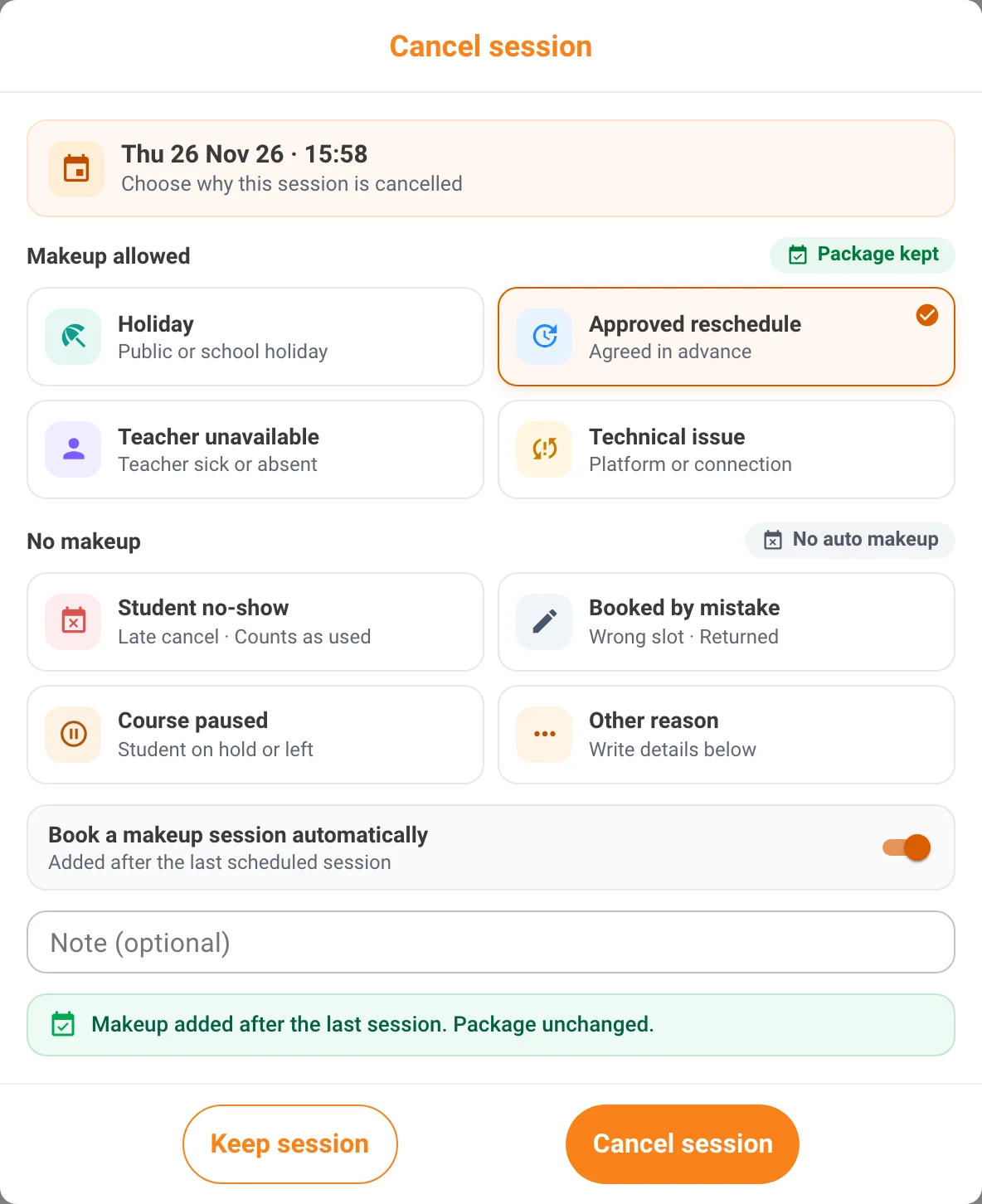
| Category | Reasons | Package & Make-Up Outcome |
|---|---|---|
Makeup allowed | Holiday, Approved reschedule, Teacher unavailable, Technical issue | Not deducted. Auto-enables Book a makeup session automatically (hidden on From here on); blocked makeups mark Makeup pending. |
No makeup | Student no-show | Deducted (Counted) — toggle off manually to refund. |
No makeup | Booked by mistake, Course paused | Not deducted, returned to package balance without auto-makeup. |
No makeup | Other reason | Requires >= 3 characters note (typing without picking a card auto-selects Other reason); package deduction defaults OFF. |
↺ Restore& Linked Make-Ups: with an active linked makeup, chooseCancel makeup & restoreorKeep as is. If the linked makeup already started, the original session restores while keeping the makeup session for manual review. (Reload and retry if another admin just updated the row).
3. Bulk School & Branch Holidays (Holidays)
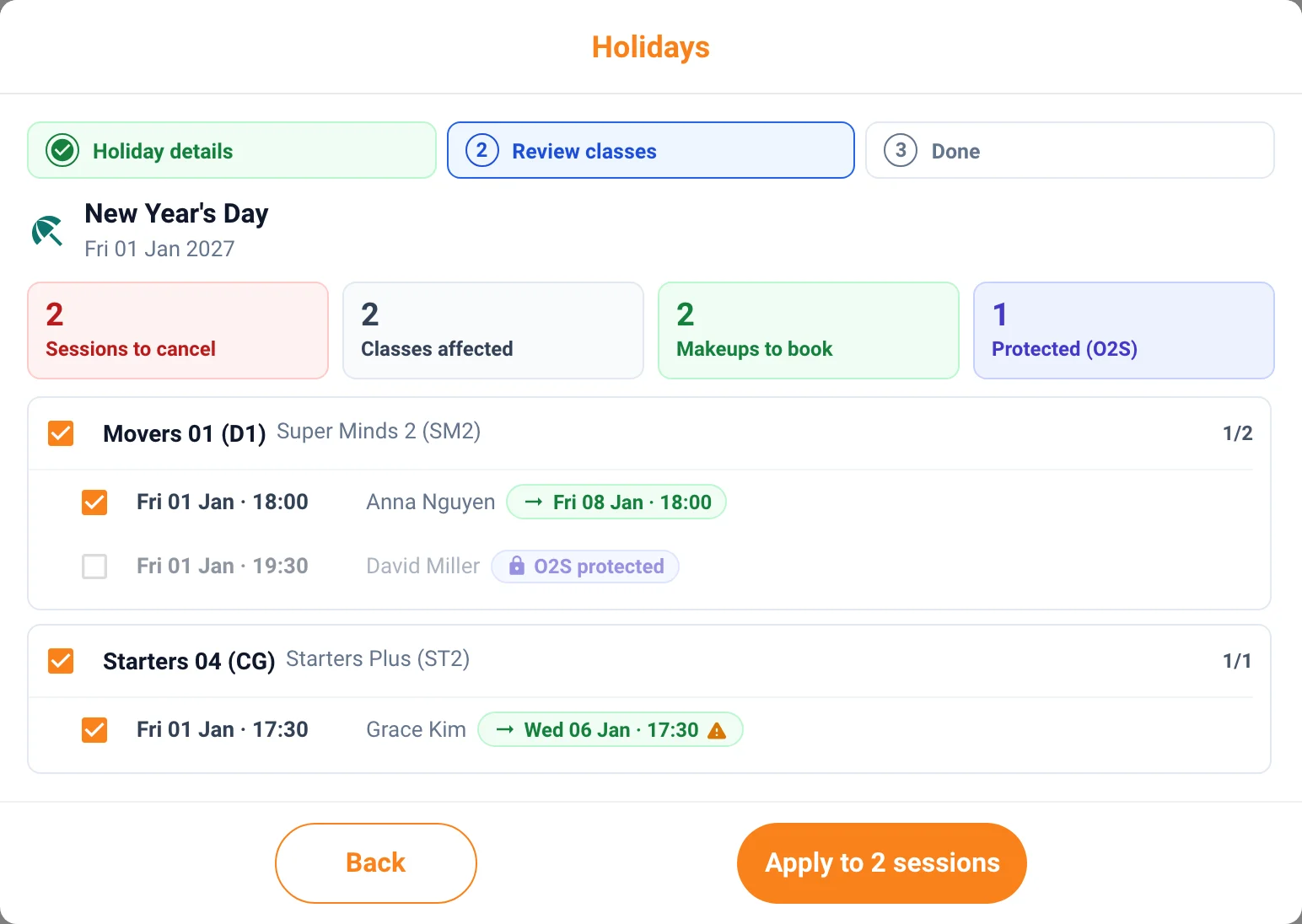
- Click
Holidayson the toolbar (Admin,Agency Admin,O2S Admin). - Pick a preset or custom date range (up to
60 days) and scope (Whole schoolor singleAgency). - Keep
Book makeup sessions automatically&Save to holiday calendar(or chooseOnly save to calendar). - In
Review classes, uncheck exceptions;[O2S]classes showO2S protectedfor school roles. Large schedules supportReview next batch of classesandRetry pending classes.
4. Multi-Sheet Excel Export (Export)
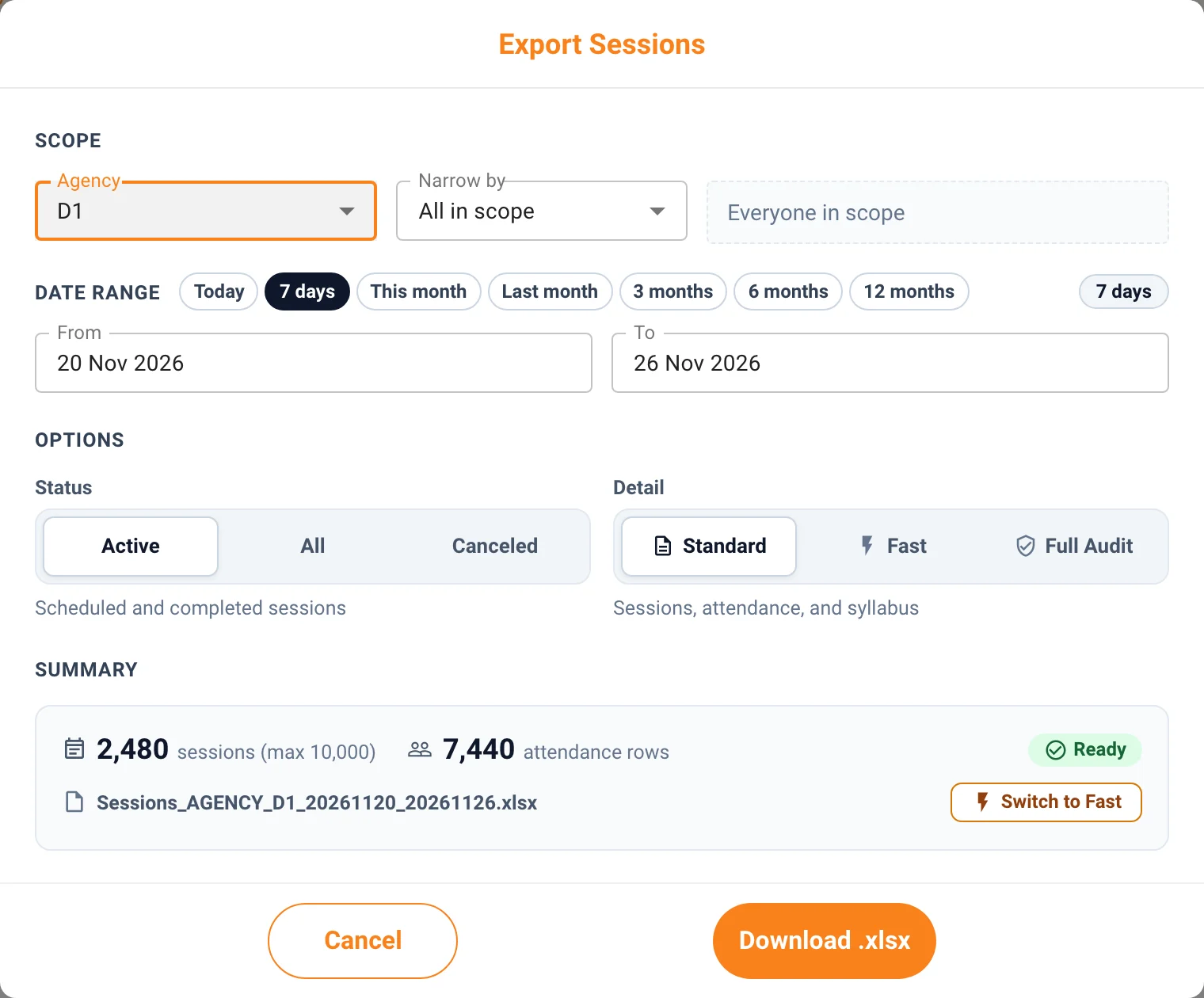
Click Export (available on both Event Board and O2S Base) to download a .xlsx workbook containing Summary, Sessions, and Student Attendance (plus Attendance Matrix, Cancel & Makeup, or Overtime & Audit when applicable):
- Choose Scope: select an
Agencyor narrow to aTeacher/Group/Student/Course(Courserequires selecting an Agency;Agency Adminis locked to branch scope and omits financial fields on Base). - Pick Dates: quick pills
Today..12 months(max366 days). - Select Status & Detail:
Standard,Fast(streamlined for wide date ranges), orFull Audit. - Verify
Summary& Download: capped at<= 10,000sessions /<= 100,000attendance rows. During peak evening hours (17:00–22:00), whole-school/agency exports> 35 daysrecommend clickingSwitch to Fastor filtering to a single entity.