

School Teachers & Smart Board 2.0 Guide
Are you an [O2S] Teacher joining multiple schools through
https://base.o2s.app?Open [O2S] Base Teacher Guide →For Internal School Teachers signing in at
https://<school>.o2s.app(China:lms.online2study.cn). DesktopChromeorEdgeis required — mobile phones and tablets (including iPad) trigger a compatibility warning and hideScreen Share/Recorder.
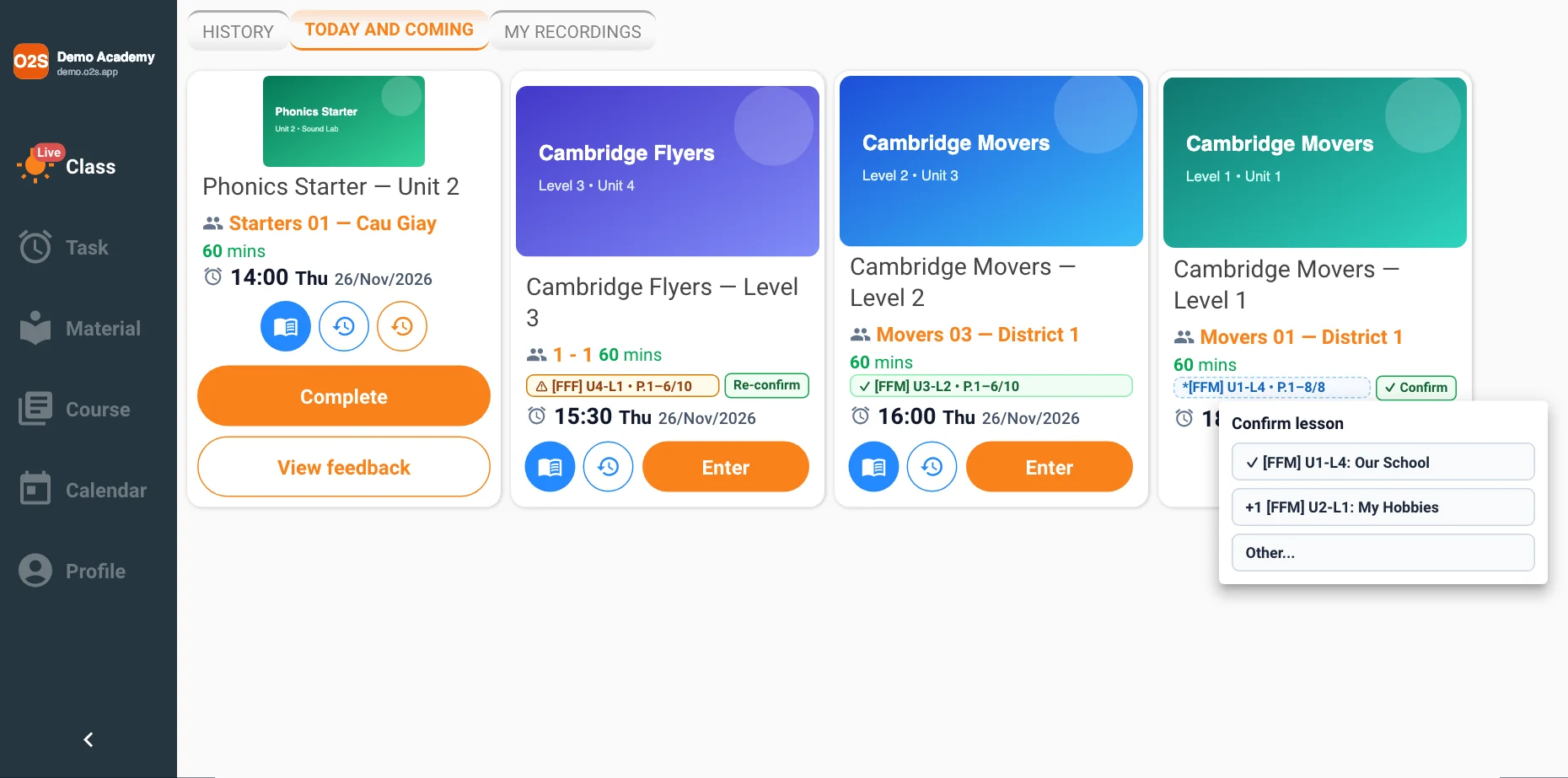
1. Teacher Portal Cards & Joining Class
- Room Opens 10 Minutes Early (
IN MINUTES): each home card showsSyllabus(when attached) →History→ Join button. Enter class(or camera icon) highlights from 15 minutes before start through 15 minutes after end (outside that window it renders a clock or history icon; clicking a past/later slot while another session of that class is live offers jumping straight to the live session).- Quick Confirm (
✓ Confirm/Re-confirm): on upcoming cards (*suggested,✓confirmed,⚠changed,Syllabus completed), tap✓ Confirm(hidden once syllabus completes) to lock in next lesson.
2. Smart Board 2.0 Gestures & Shortcuts
All strokes sync live; Zoom (0.2x..2.0x, 0 reset, Ctrl+Wheel) and Pan (Middle-Drag) are Teacher-only with a corner Minimap keeping students aligned.
L-Drag (Left Drag)
Draw / Erase / Type
Hold left mouse button and drag on the canvas (Text: press T or click existing box).
R-Click (Single Right Click)
Cycle Tools
Switch between Pen → Highlighter → Eraser.
2× R-Click (Double Right Click)
Undo Last Stroke
Double-click the right mouse button to undo your last stroke/text (attached images are not undone).
R-Drag / Middle-Drag [Teacher only]
Move / Pan Canvas
Hold right or middle mouse button and drag to pan the slide (Teacher/Conductor only).
Scroll Wheel
Resize Pen / Highlighter / Text
Roll mouse wheel up or down to resize Pen, Highlighter, or Text (Eraser uses a fixed radius).
R+Wheel / Ctrl+Wheel [Teacher only]
Zoom In / Out
Hold right mouse button (or Ctrl/Cmd) + scroll wheel to zoom 0.2x–2.0x (Teacher only).
- Right Toolbar: Initials Stamp, Undo (
Ctrl/Cmd+Z), TextT, Pen, Highlighter, Color & Size Picker ([ / ]& wheel resize Pen/Highlighter/Text only — never Eraser). - Eraser →
ClearvsClear All:Clearwipes your own strokes, text, andAttachimages on the current slide;Clear All(Teacher only) clears other participants' items. Press?for gesture help (Esccloses). - Bottom-Left Teacher Controls:
Label,Visibility(hide/show student items),Lock(class-wide lock), andAttach(crop & paste images onto the slide; remove attached images via Eraser →Clear).
✏️ Palm Rejection (Touchscreen) & Editing Text on Board (T / ✎)
- Stylus drawing automatically rejects palm contact; pause ~1 second after lifting the pen before pinch/tap gestures.
- Click any text box to edit inline and drag its right edge to adjust line wrapping (
✓save /✗cancel). Text boxes holding 1 Chinese character show✎animated stroke order.
3. Classroom Controls, .mp3 Playback & Screen Share
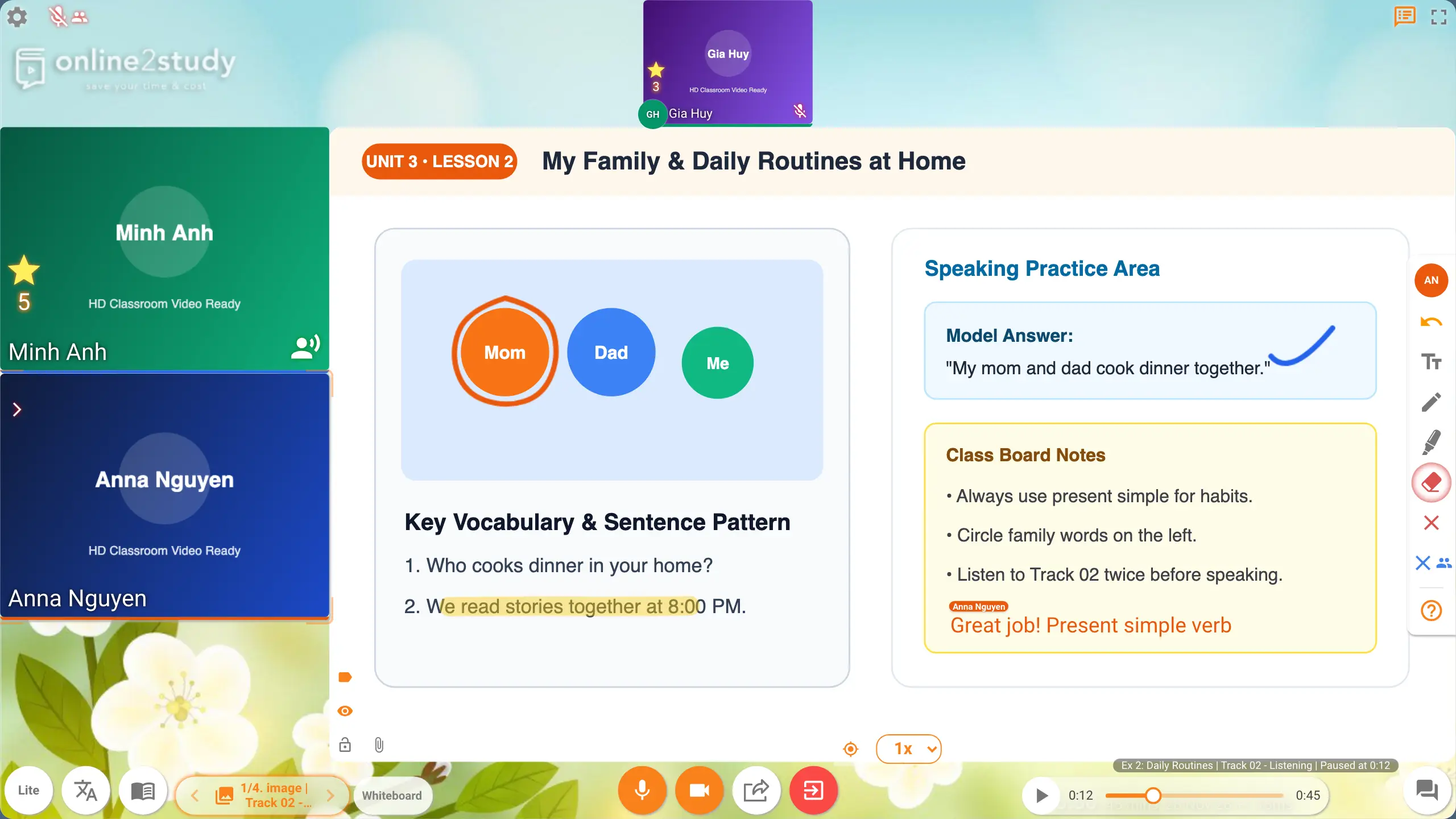
Per-Student Video Tile Controls & Hand Raise
| Control | Live Action |
|---|---|
⭐ Reward Star | Awards a star with celebration chime. |
🎯 Spotlight | Enlarges student camera feed to focus center. |
| 🎙️ / 📷 | Remotely toggle individual student Mic or Camera (plus Mute All beside Settings). |
✏️ Board Draw | Allow one student to draw even while Lock is active. |
✋ Hand Raise | Click the incoming top toast notice to accept and auto-unmute (or × to defer). |
Layouts, Interactive Tools & Device Settings
- 3 Video Layouts (
Layout):Gallery,Split,Board Full; draggable/4-corner-resizable floating Teacher tile syncs to students. - Bottom-Left Bar:
Lite(pause incoming video on slow networks),Chat(Public/Executivechannels, 27 emojis,Entersends /Ctrl+Enternewline),Translate(5-language AI dictionaryEN/ZH/JA/KO/VI,Esccloses),Syllabus(V1/V2,Mark all, quiz?);Admin&Observerget localMaster Mute. - Media,
Screen Share,Quiz&Recorder: inlineEnable Proxyappears directly on media/PDF errors;Screen Share(desktop browsers only) shares screens or windows cleanly; Quiz 3 Modes (Teaching,Competition,Self-checking2 attempts);Recorder/My recordings(desktop non-Safari browsers with sufficient free storage). Device setting: pick Camera/Mic/Speaker (Test speaker), background blur/removal, andGet files via PROXY.
4. Network Recovery, Save & leave, Feedback & History
- Auto-Recovery (
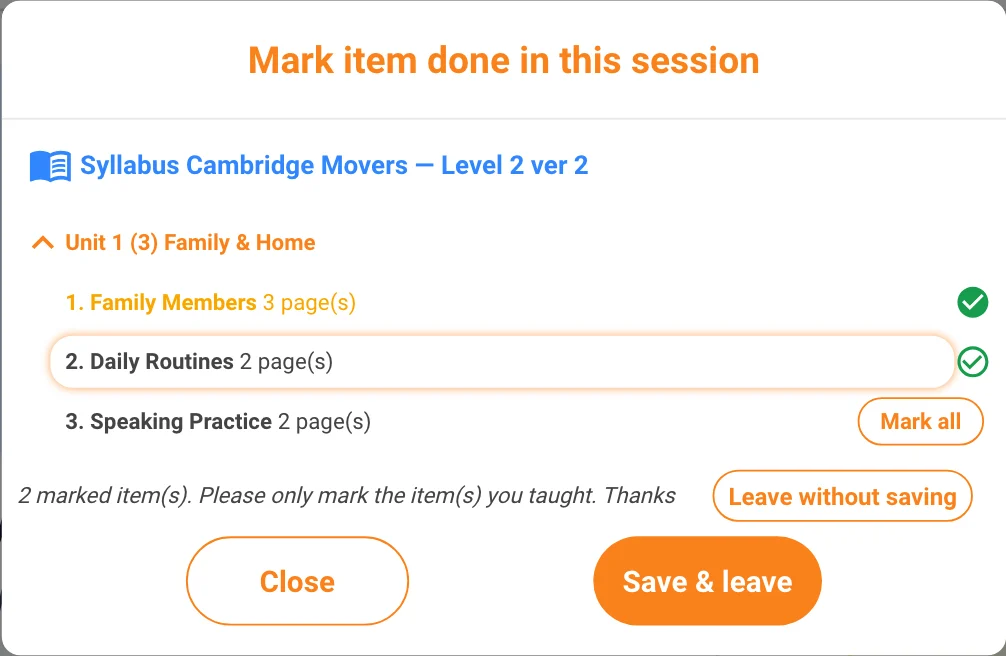
Reconnecting audio/video…): reconnects smoothly acrossServerswitches while keeping strokes and recordings intact (clickingExitmid-reconnect promptsStay/Exit). - Mark Lessons Done (
Save & leave): exiting on or after the scheduled class date opens"Mark item done in this session"(exiting early before class date closes without prompting). Check taught items and clickSave & leave(orLeave without savingafter a test visit).
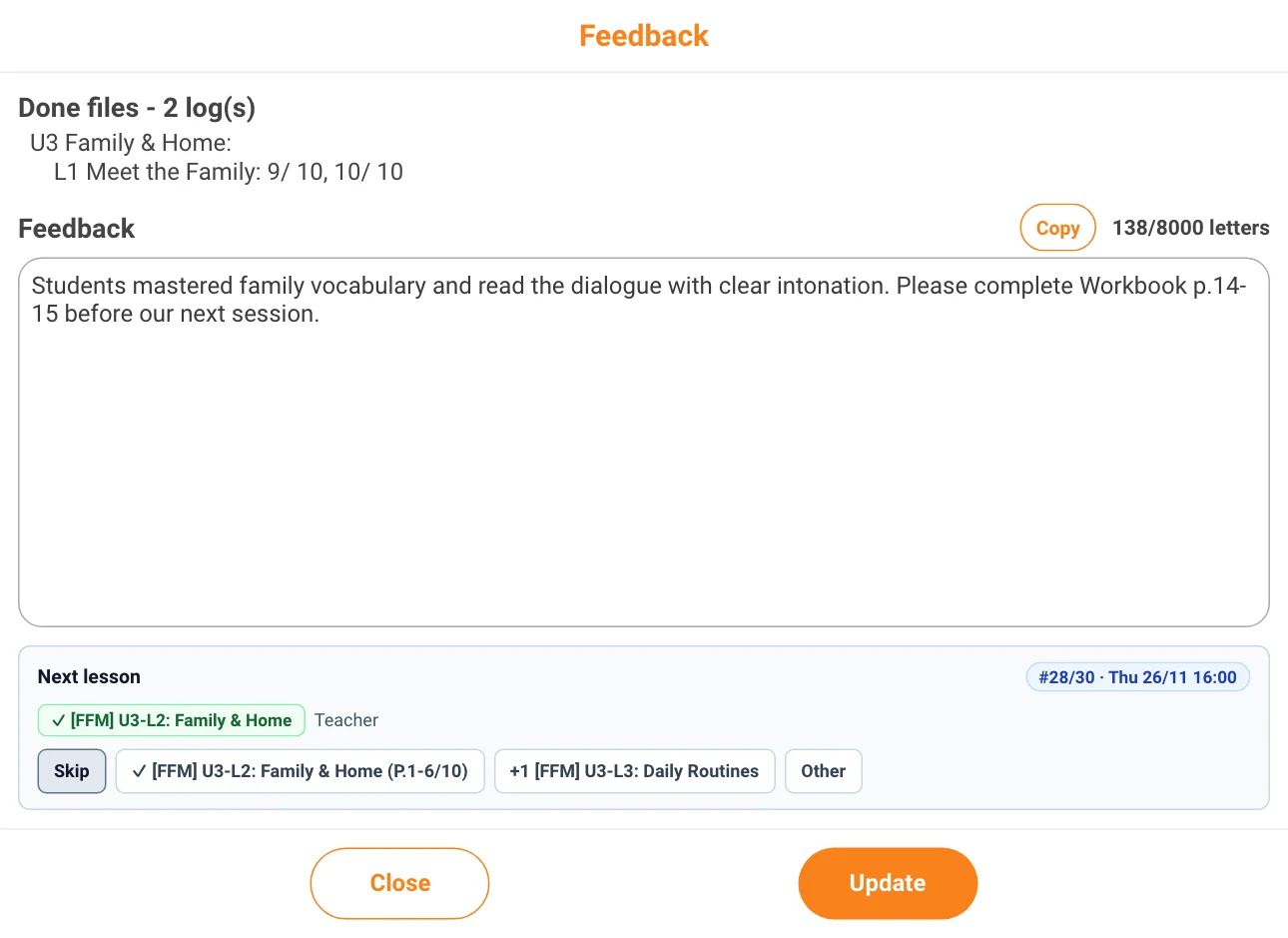
- Submit
Feedback&Next lesson: clickComplete/Feedbackon your class card (editable 2 days, max8,000chars;7-dayemail reminders). PickNext lesson(Skipdefault keeps current lock) right at the bottom before submitting.
- Read-Only
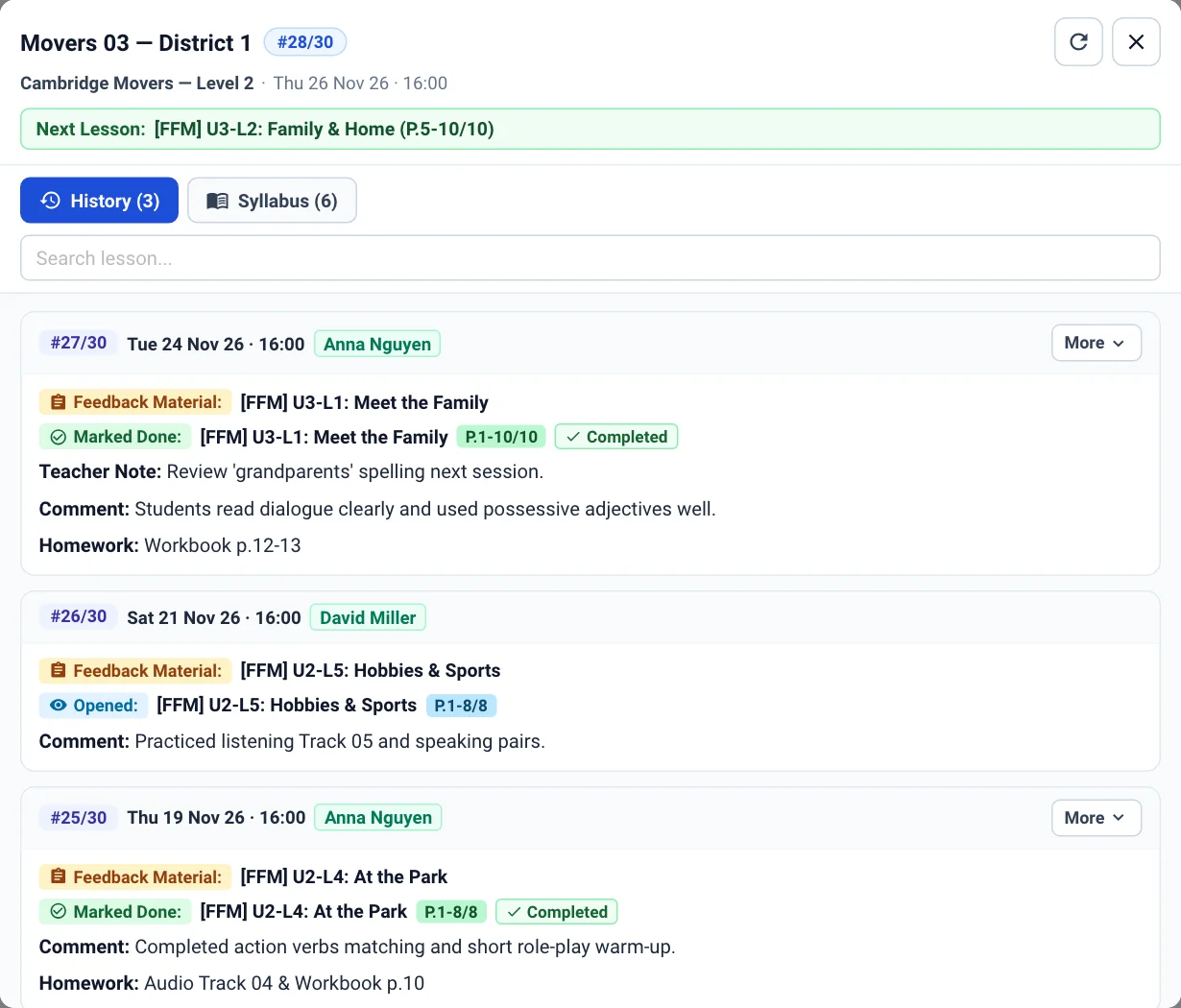
History(2 Tabs): clickHistorybesideSyllabus/Enter classto inspectHistory (N)+Syllabus (N)(With Activity/All Past).
📅 School Teacher Menu (<school>.o2s.app)
- Includes
Class,Task,Material,Course,Calendar(weekly schedule & 1-1Time Slots), andProfile.